
For twenty years, Google Search Console has been a website tool. You verified a domain, and Google showed you the queries, impressions, and clicks that brought people to your pages. If your audience lived on Instagram or TikTok, you were on your own.
That changed in July 2026. Google introduced platform properties, a new property type that lets you add an Instagram, TikTok, X, or YouTube account directly to Search Console and see how that content performs on Google Search, Discover, and Google News.
No domain required. No HTML file uploads. Just sign in to the account and authorize the connection.
Here’s the news behind it, the exact setup steps, and what to actually do with the data once it arrives.
The News: What Google Announced, and When
On July 7, 2026, Moshe Samet, Product Manager Lead for Search Console, announced platform properties on the Google Search Central Blog. The framing was direct: to help site owners and creators, including those without their own website, understand how their social and video posts perform on Google Search and Discover.
The launch wasn’t a total surprise. A few weeks earlier, Barry Schwartz at Search Engine Roundtable spotted Google briefly publishing, then pulling, a help document titled “platform properties.” That document came back alongside the official announcement.
July 29–30, 2026 — Google confirmed the global rollout. Daniel Waisberg and Lizzi Sassman of the Search Relations team announced that platform properties are now available to everyone, and published a companion guide on analyzing social and video content performance.
Two useful notes buried in that second post:
• Data now covers Google Search, Discover, and Google News — not just Search.
• If you already set up a Search profile, you should already have access to your data for that same platform inside Search Console.
Also Read: 13 Free and Open Source Marketing Tools Every Marketer Should Know in 2026
Which platforms are supported?
In December 2025, Google ran a limited feature called “social channels” that auto-detected social accounts and pulled basic data into a website’s Insights report. That experiment covered YouTube, Instagram, TikTok, and Facebook.
The July 2026 launch drops Facebook, adds X, and turns the concept into a full property type with its own reports. Facebook, LinkedIn, Pinterest, Threads, and Reddit are not supported at launch, though Google’s framing suggests the list may grow.
Don’t confuse platform properties with Search profiles
These shipped close together in 2026 and get mixed up constantly:
| Platform properties | Search profiles | |
| What it is | Private analytics inside Search Console | Public, shareable creator page in Search |
| Who sees it | Only you and users you grant access | Anyone on Google |
| Purpose | Measurement | Discovery and presentation |
One is the backstage view. The other is the stage. This guide is about the backstage view.
Which Platforms Are Supported?
As of August 2026, Search Console supports four:
• Instagram — Reels, posts, and profile visibility
• TikTok — videos and profile pages
• X — posts and profile
• YouTube — Videos, Shorts, and channel pages
Each account is added as its own separate property. If you run three Instagram accounts and a YouTube channel, that’s four properties.
How to Add Your Social Media Profiles to Google Search Console: Step by Step
The whole process takes about two minutes per account.
Step 1: Sign in to Search Console
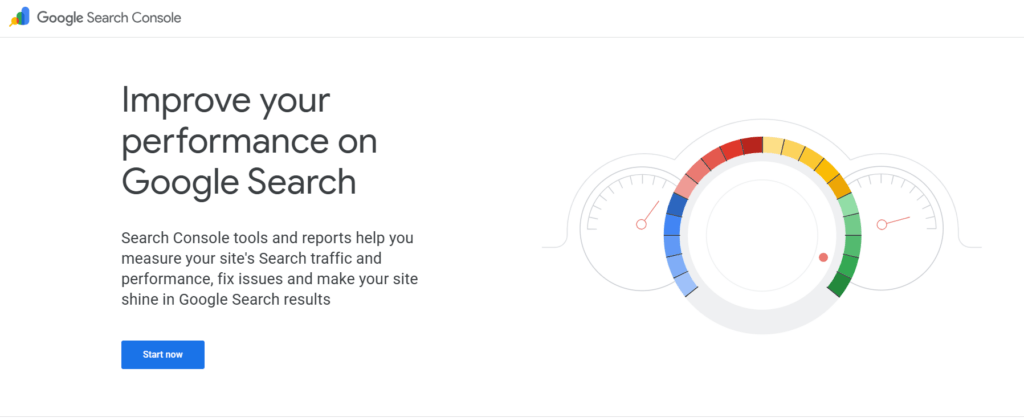
Go to search.google.com/search-console and sign in with the Google account you want the data attached to.
If you already manage websites in Search Console, use that same Google account so everything lives in one place. If you’ve never used Search Console, you can start fresh — a website is no longer a prerequisite.
Step 2: Open the “Add property” flow
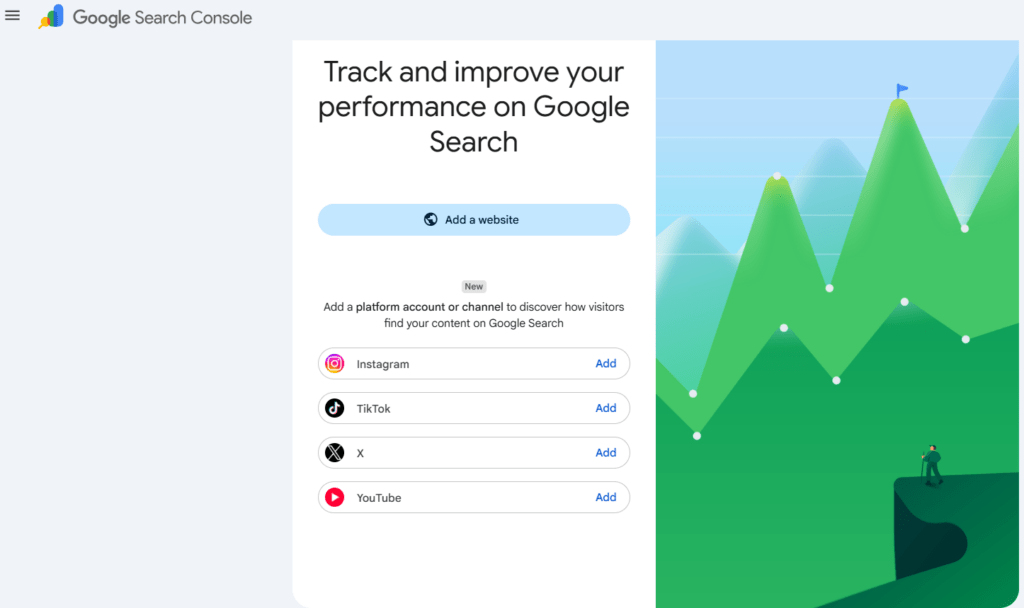
Two ways in:
• Click the property selector dropdown in the top-left sidebar, then click Add property, or
• Go straight to the Search Console welcome/verification screen, which now lists the social platforms alongside “Add a website”
Step 3: Choose your platform
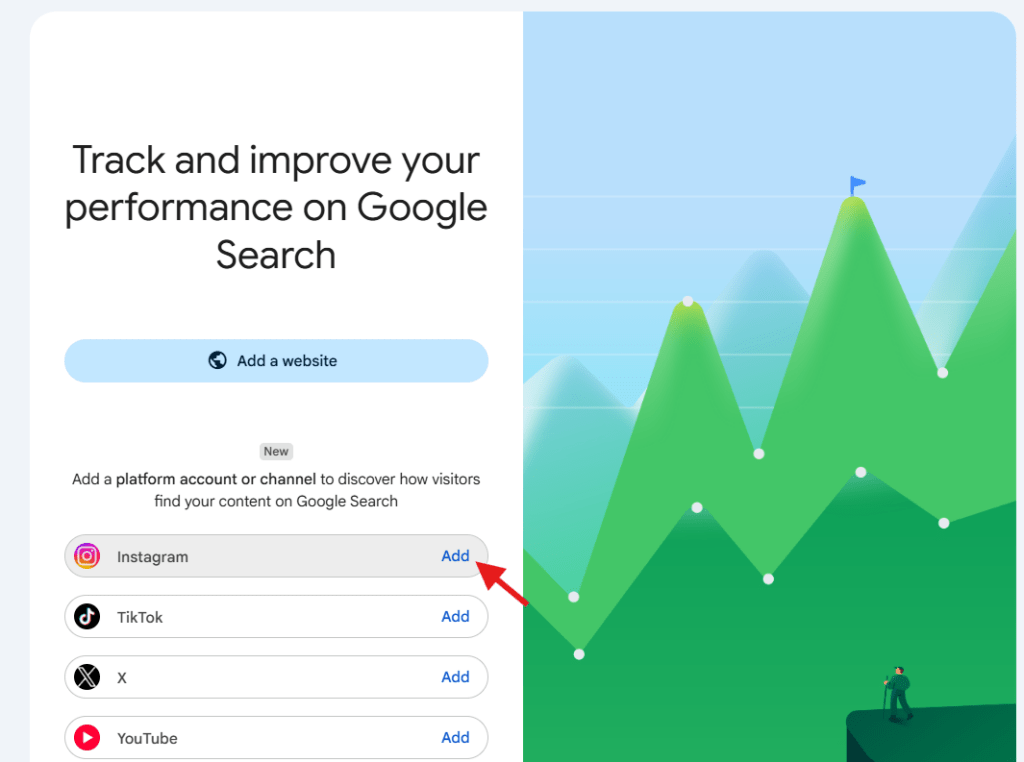
You’ll see the supported options listed. Click Add next to Instagram, TikTok, X, or YouTube.
Check the account carefully here. If you manage multiple brand or client profiles, it’s easy to authorize the wrong one.
Step 4: Sign in and authorize the connection
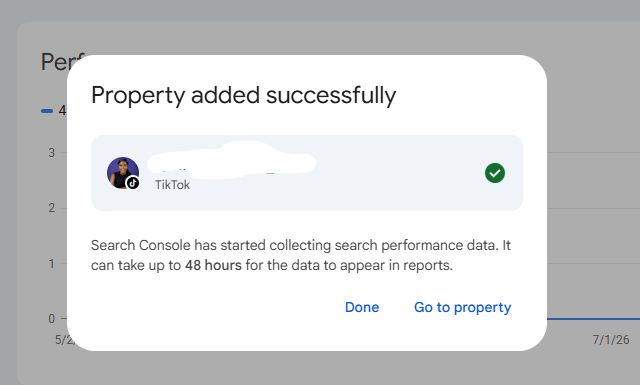
Google redirects you to the platform’s own login. Sign in to the specific account you want to track and approve the permission request.
This is the verification method: instead of DNS records or HTML file uploads, ownership is proven by logging in to the account itself. Google also supports automated connection via an existing verified website property in some cases.
Step 5: Confirm and open the property
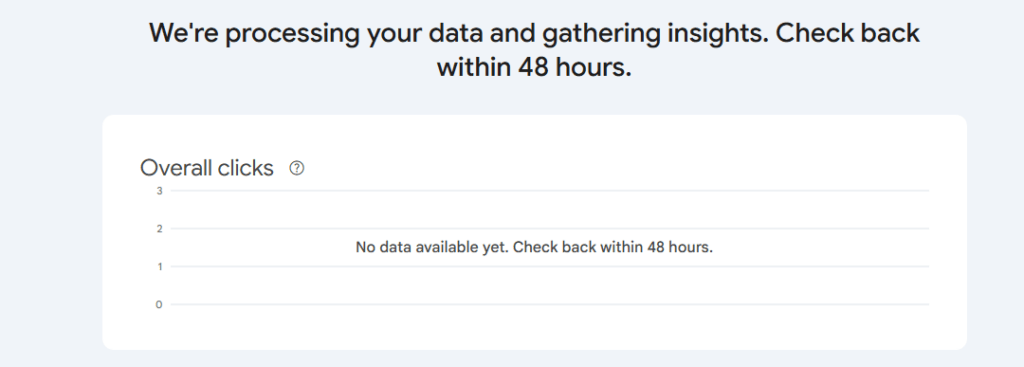
Once ownership is verified, you’ll get a confirmation message. Click Go to property.
Step 6: Repeat for every account
Each profile needs its own property. Run through steps 2–5 again for your TikTok, then your X account, then each additional Instagram handle.
Step 7: Wait for data
Don’t panic at an empty dashboard. New properties often show blank or partial charts for the first few days while Google associates your account and processes data. This is expected — especially for newer accounts with less content in the index.
Also Read: The Future of Search: Is Google Losing Ground to ChatGPT in 2026?
What You Get: The Three Reports
Every platform property comes with the same three views.
Performance report
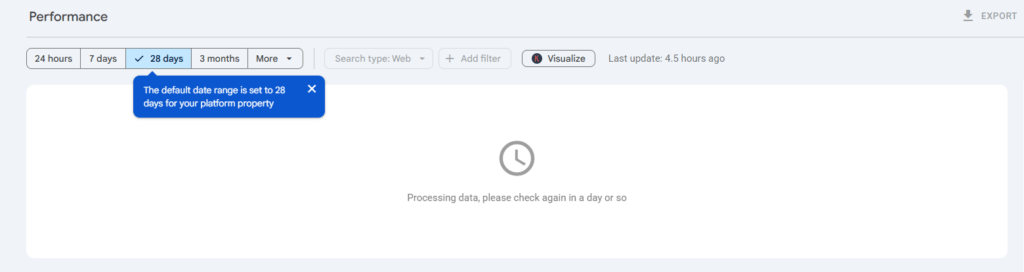
Total clicks, impressions, CTR, and average position. Filter and sort by individual post and by query to see which content and which search terms are actually driving traffic. Data can be exported for analysis in Looker Studio, BigQuery, or a spreadsheet.
This is the report that matters most. It’s the first time you can see the search queries pulling people to a specific Reel or Short.
Insights report
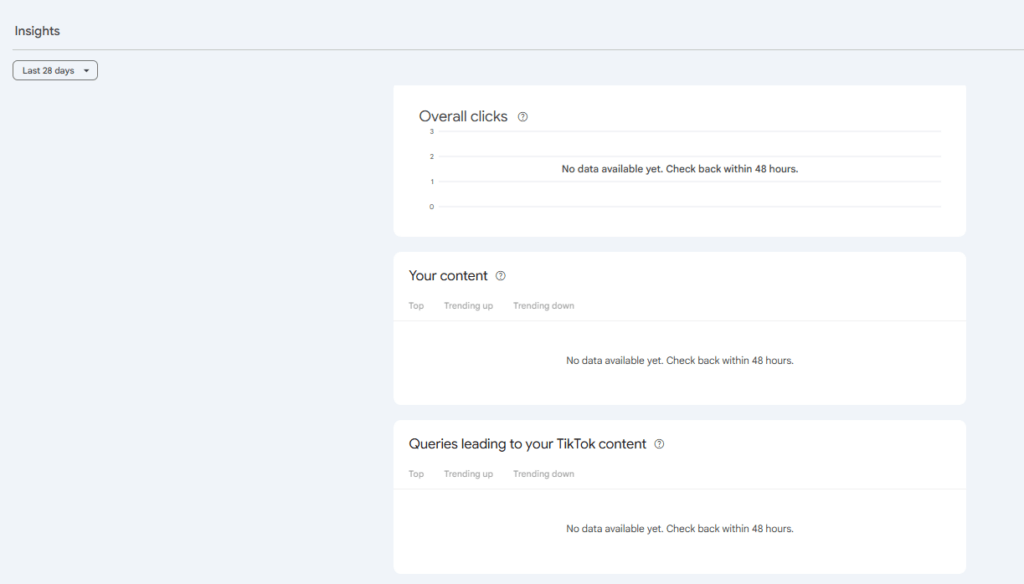
A high-level read: recent traffic trends, top-performing posts, and how people discover your account on Google. Google’s new guide suggests using the query groups here to spot topics that are trending up and trending down.
Achievements
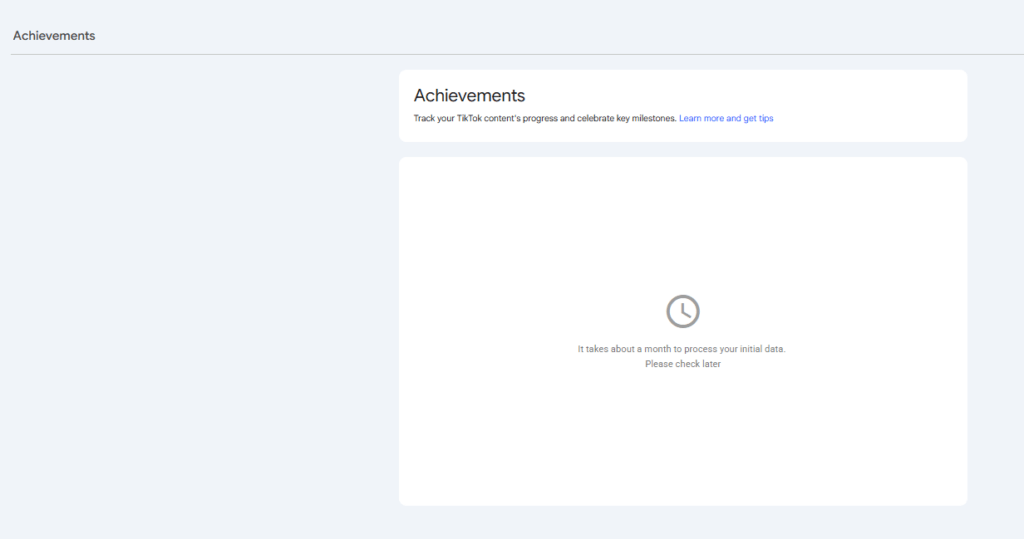
Milestone tracking, for example, hitting a new threshold for total clicks from Google Search in the last 28 days. It’s the most unusual addition, and it’s clearly built for creator motivation rather than deep analysis.
What this data is not
Setting expectations here saves a lot of confusion:
• It doesn’t replace native analytics. Instagram Insights, TikTok Analytics, X Analytics, and YouTube Studio still own in-app engagement, followers, comments, watch time, and saves. Search Console only measures discovery through Google.
• It doesn’t guarantee indexing. Connecting an account doesn’t mean every post gets indexed or displayed. Data appears only when eligible content surfaces on a supported Google surface.
• It’s not an AI visibility tracker. It won’t tell you every time your brand is cited in an AI Overview or an AI assistant’s answer, though it does give you real evidence about how Google surfaces and routes traffic to your off-site content.
One more operational note: ownership is re-checked periodically. If an external login expires and the connection drops, access pauses until you re-verify. The good news — once you re-verify, you get the same reports back without waiting for data to accumulate again.
Also Read: 20 Content Marketing Examples From Brands That Get It Right
How to actually use the data
Connecting the account is the easy part. Here’s where the value is:
1. Write captions and titles around real queries. Once you can see which searches pull people to a specific Reel, you can write hooks, captions, hashtags, and bios around how people actually phrase things — the same habit that drives good SEO content, moved to social.
2. Find the gap between platform-popular and Google-popular. Your highest-engagement post in-app and your highest-impression post on Google are often different. That gap tells you which content has search legs versus feed legs.
3. Prove social’s contribution. For agencies and in-house teams, this is the first Google-sourced number you can put next to your website data in the same monthly report.
4. Strengthen entity consistency. When a business publishes consistent, useful information across its website, YouTube channel, Instagram, and TikTok, Google has more context for understanding what that business is. Platform properties show you which parts of that ecosystem are actually earning visibility.
5. Negotiate better. Creators can now show brands a Google-verified impression count on top of platform-native numbers, a genuinely stronger position in a brand-deal conversation.
Frequently asked questions
Do I need a website to use platform properties?
No. That’s one of the headline changes. Creators and brands who have never owned a domain can now use Search Console.
Which platforms are supported?
Instagram, TikTok, X, and YouTube. Facebook and LinkedIn are not supported as of August 2026.
Can I add more than one account?
Yes. Each account or channel becomes its own property. Repeat the setup for each one.
How long until data appears?
Usually a few days. New or low-volume accounts may take longer.
Is this the same as Google Business Profile social links?
No. Adding social links to a Google Business Profile is a public-facing listing feature. Platform properties are private analytics inside Search Console.
Does connecting my account change how Google ranks it?
No. Adding a property is a measurement action. It doesn’t affect how your content performs on Google Search.
What if I don’t see the option?
The feature rolled out globally at the end of July 2026, but if it’s still missing, sign out and back in, confirm you’re on the current Search Console interface, and check that you’re using the intended Google account.
The bigger picture
For years, the working split has been: SEO happens on the website, social runs alongside it as a separate channel. Google just put both into the same tool.
That’s a signal worth reading. When someone searches your brand, they may land on your Reel before your homepage. Treating social presence as part of your organic Google visibility — rather than a parallel track — is now the more accurate model. Platform properties are the measurement layer that finally makes that arguable with data.
If you have supported accounts, connect them today. The data starts accumulating from the moment you verify, not from the moment you decide you need it.
Sources
• Google Search Central Blog — See how content from social and video platforms performs on Google Search (July 7, 2026)
• Google Search Central Blog — Platform properties roll out globally, plus a new social and video performance guide(July 2026)
• Google Search Console Help — About platform properties
• Google Search Console Help — Add a website or platform property to Search Console
• Search Engine Journal, Search Engine Roundtable, Tubefilter — launch coverage