

The Google Analytics 4 interface caps reports at 100,000 rows and applies sampling once you cross certain thresholds, which means the dashboards most marketers rely on every day are working from an incomplete picture. Linking GA4 to BigQuery removes that ceiling entirely. Once connected, every raw event GA4 collects flows into a data warehouse where it can be queried directly, unsampled, uncapped by the 14-month retention limit in the standard GA4 interface, and joined with other business data like CRM records or ad spend.
This guide walks through what the export actually is, how to set it up from scratch, and what to expect once the data starts landing.
What Is GA4 BigQuery Export?
GA4 BigQuery export is a native, built-in connector that copies every event your GA4 property collects into a BigQuery dataset once per day, at no additional cost for standard (free tier) properties. Each day produces a new table named in the format events_YYYYMMDD, holding one row per event with full parameter-level detail, without any of the aggregation or sampling applied by the regular GA4 reporting interface.
Properties on GA4 360 get an additional streaming export option, which lands data in near real time rather than once a day, at extra cost.
What Do You Need Before You Start?
You’ll need three things in place before linking anything:
- A Google Cloud project. If you don’t already have one, create it for free at Google Cloud’s console.
- Billing enabled on that project. BigQuery has a generous free tier for storage and query volume, but a billing account still has to be attached before you can create a dataset.
- The right permissions. You need Editor access or higher on the GA4 property itself, and Owner (or at least Editor) access on the destination Google Cloud project.
Also Read: How to Add Social Media Profiles to Google Search Console (2026 Step-by-Step Guide)
How Do You Connect GA4 to BigQuery?
- Create or select a Google Cloud project. Go to the Google Cloud console, create a new project if needed, and make sure the BigQuery API is enabled for it.
- Open GA4 Admin.
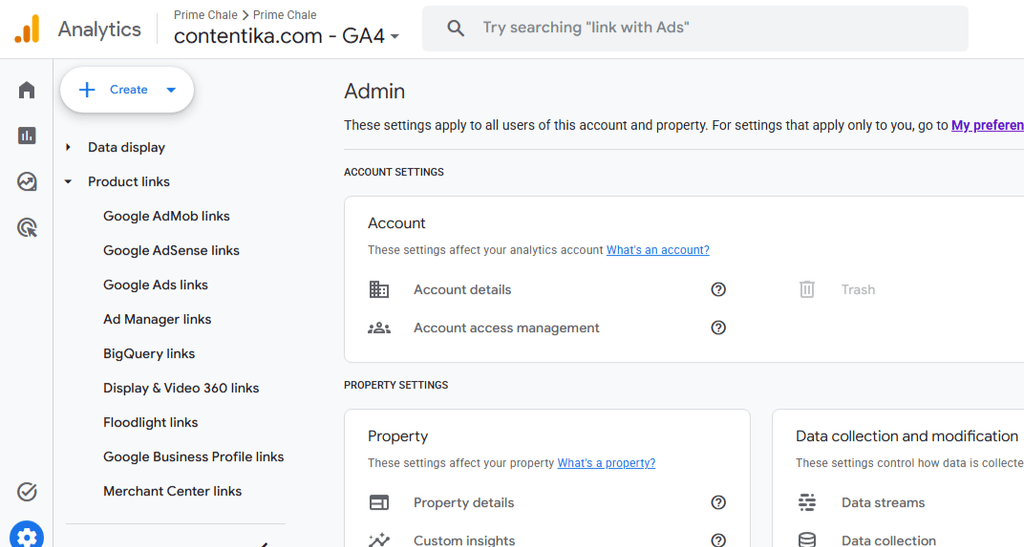
In your GA4 property, go to Admin, then Product Links, then BigQuery Links.
- Start the link.
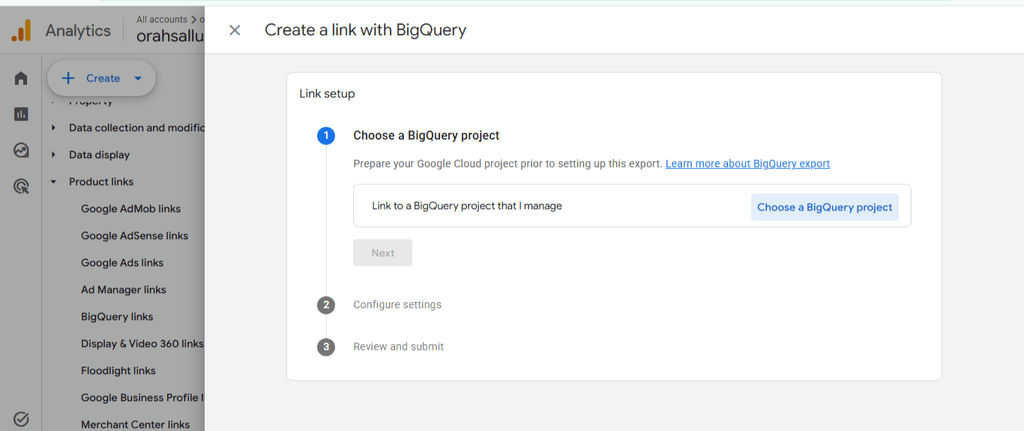
Click Link, then choose the Google Cloud project you want to send data to. If you manage several GCP projects, double-check that you’re selecting the right one.
- Pick a data location. You’ll choose between the US and EU regions (or a specific regional location). This decision is permanent. It cannot be changed later without breaking the link and starting over, so base it on where your users are and any data residency requirements like GDPR.
- Choose your export type. Standard properties get daily export by default. If you’re on GA4 360, you can also enable streaming export for near-real-time data, at an additional cost.
- Select data streams and exclusions. You can choose which data streams to include and exclude specific events from the export, either to control dataset size or to omit data you don’t need.
- Review and confirm. Check the project, dataset name, and region one more time, then submit. GA4 creates a dataset named analytics_<property_id> and begins populating it, usually within a day.
What Do the Exported Tables Look Like?
Once the link is active, BigQuery starts filling in one table per day: events_20260914, events_20260915, and so on. If you enable streaming export, you’ll also see an intraday table that updates continuously and gets replaced by the finalized daily table once the day closes.
Each row represents a single event, with nested fields for event parameters, user properties, and ecommerce details. This nested structure is the main learning curve for anyone coming from the flat tables of a typical reporting tool. Custom event parameter values are also truncated at 100 characters in the export, which is worth knowing before you build queries that depend on longer string values.
Also Read: What Is a Content Management System? How a CMS Can Help Your Business in 2026
What Should You Watch Out For?
A few things trip people up after the export is live:
- The region is locked in. Changing it means unlinking and relinking, which starts your data history over in the new location.
- BigQuery costs are separate from the export itself. The export is free for standard properties, but you still pay standard BigQuery rates for storage and for scanning data when you run queries.
- Numbers won’t match the GA4 UI exactly. The export removes sampling, but privacy thresholding, timezone handling, and differences in how sessions are defined mean small discrepancies between BigQuery totals and the GA4 interface are normal—not a sign that something is broken.
- History only starts from the link date. BigQuery export does not backfill data from before the link was created, so the earlier you set it up, the more history you’ll have to work with later.
Is It Worth Setting Up?
For any team doing more than casual reporting, yes. The GA4 interface works fine for a quick check on traffic or conversions, but it cannot join Analytics data with CRM records, ad platform spend, or product data, nor can it produce fully unsampled numbers at scale. BigQuery export solves all three issues, and since it is free to enable on a standard property, the only real costs are the time required for setup and modest BigQuery usage fees once you begin querying at scale.
Sources
- Google Analytics Help – Set up BigQuery Export: Google’s documentation on the linking process, permissions, and export options.
- Digital Applied – GA4 BigQuery Export 2026 Reference: A detailed breakdown of the export schema and known parity differences with the GA4 UI.
- Nice Looking Data – GA4 BigQuery Export Guide: A practical setup walkthrough with example SQL queries for new exports.
- Fresh Egg – How to Set Up a GA4 BigQuery Export: A UI focused walkthrough of the linking steps with screenshots.
Glossary of Terms
- GA4 (Google Analytics 4): Google’s current analytics platform, built around event-based tracking rather than the session-based model used in Universal Analytics.
- BigQuery: Google Cloud’s serverless data warehouse, used to store and query large datasets with SQL.
- Data sampling: The practice of estimating results from a subset of data rather than the full dataset, common in the standard GA4 reporting interface at high volumes.
- Data residency: Legal or organizational requirements about which geographic region a company’s data must be stored in.